Version control
Nextcloud supports a simple version control system for files. Versioning creates
backups of files which are accessible via the Versions tab on the Details
sidebar. This tab contains the history of the file where you can roll back a
file to any previous version. A new version is saved only if at least two minutes
have passed since the last version was created. Versions are stored in data/[user]/files_versions.
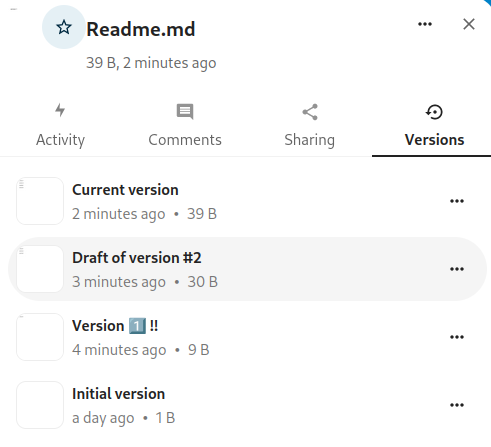
To restore a specific version of a file, click the circular arrow to the right. Click on the timestamp to download it.
The versioning app expires old versions automatically to make sure that you don’t run out of space. This pattern is used to delete old versions:
For the first second we keep one version
For the first 10 seconds Nextcloud keeps one version every 2 seconds
For the first minute Nextcloud keeps one version every 10 seconds
For the first hour Nextcloud keeps one version every minute
For the first 24 hours Nextcloud keeps one version every hour
For the first 30 days Nextcloud keeps one version every day
After the first 30 days Nextcloud keeps one version every week
The versions are adjusted along this pattern every time a new version gets created.
The version app never uses more than 50% of the user’s currently available free space. If the stored versions exceed this limit, Nextcloud deletes the oldest versions until it meets the disk space limit again.
Naming a version
You can give a name to a version.
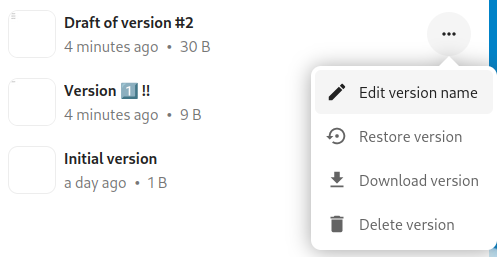
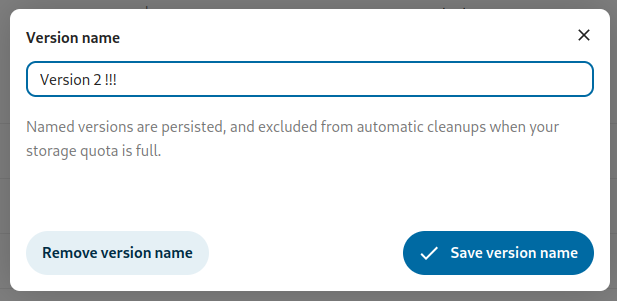
When a version has a name, it will be excluded from the automatic expiration process.
Deleting a version
You can also manually delete a version without waiting for the automatic expiration process.